Showing posts with label Robotics. Show all posts

Tuesday, 19 February 2013

Testing the Analog Inputs

        The 4 inputs on the SSC-32 card can be used in 2 different ways: Digital and Analog. We have already used the first in the last post and now we will try using them in Analog mode.
       To do this, we need a Potentiometer (or “Pot”) as shown in the diagram from the SSC-32 manual.

        A potentiometer is basically an adjustable resistor, so the as you turn the dial on it, the resistance acting on the electricity moving through it increases or decreases.
        We used the ohmeter to check the resistance of the pot by measuring across the two outside connectors. The meter showed that this was a 25K ohm pot and when we adjusted it, the reading didn't change, confirming we had the correct leads.

        We then tried reading the resistance across the center and outside leads and found it varied as we turned the handle.


        We then connected up the three leads of the pot to the “+” (5 volts), “-” (ground) and “A” (the first analog input) pins of the SSC-32 card using the breadboard. We also connected leads to the “A” and “-” pins so that we could monitor the voltage being given to the “A” input as we adjusted the potentiometer. The connections are shown below:

        With the pot adjusted to 5 Volts we used the terminal program to send a “VA” command to check the value of the “A” input which came back with “FF” or 255 in decimal. Note that the first 3 bytes (56 41 0D) are the “V”, “A” and carriage return we typed in.

        Note that the initial “VA” command did not give the correct value because one dummy command at the beginning is required to change the input from digital to analog mode. We then adjusted the pot to 0 Volts and tried the command again:


        This time the response was “00” or 0 decimal.

        We then calculated what the response should be if the voltage was set to 3 volts:
        If measuring the value correctly, the response to the “VA” command should be 3 volt/ 5 volt * 255 or 153 decimal which is “99” in hex. When we tried it we got the correct result!
        We also tested the other 4 inputs pins by tying them to either Ground or 5V. They can all be queried at the same time using the “VA VB VC VD” command which returns 4 bytes instead of 1.

                   Now that we know they work, we can connect the compound eye to these inputs. The eye is actually connects to 4 input pins, one for each direction around it(up, down, left, right). It also has two other pins, one to power the receivers, and one to power the emitters. 

Sunday, 17 February 2013

New Parts

        After a bit of a delay, the parts we ordered from Robot Shop have finally arrived! We received a new servo motor for the grabber on the arm to replace the old one that is not working correctly (the internal gears are worn and it has a greatly reduced range of movement), a collection of wires to connect the SSC-32 inputs and the Raspberry Pi to the breadboard, and two circuit boards so we can connect them together and to the sensors.

        The circuit on the left is a Logic Level converter. The main purpose of it is to take signals from one voltage, and convert them to another. This is vital, as the infra-red sensor operates at a different voltage than the SSC-32 and Raspberry Pi.


        The board on the right is Dagu Compound Infrared Sensor. The bulbs in the middle emit rays of infra-red light, and the black sensors measure the response time.  If something is in front of the sensor, the rays will reflect off of it, and the response time will be quicker. This allows the sensor to detect objects up to 20cm away. We can use this on our robot to follow a person, detect obstacles, or help to position the arm when picking up an object.


Thursday, 24 January 2013

Robotics: Receiving External Input

     The SSC-32 controller card has 4 pairs of pins that can be used to receive input signals from external devices. These are marked “A”, “B”, “C” and “D” and are beside the Baud rate setting for the serial port. 


     These inputs can be connected to switches and sensors to provide feedback on the positioning of the servos. For example, we can put a simple switch across the “D” pins at the end, and send a “D” or a “DL” message to the SSC-32, to get a message back that tells us whether the switch is open (ASCII “0” or 48) or closed (ASCII “1” or 49).


     To test this we just created another a simple program with a timer called "checkSensor". It works much like our other program, and simply sends the "D" command to check what state the D pins are in(open or closed). This program just logs the state of the input (either 48 or 49) every fifth of a second. Normally the output logs 49, but when we shorted the two pins together for a couple of cycles, the output changed to 48. It change back to 49 when we stopped shorting out the pins.


     We also tried changing the input from "D" to "DL". The difference between the “D” and the “DL” command is that the DL command is a latch. This means that once that switch opens, it will continue to return the symbol for 'open' until it is reset. The D command simply returns the open symbol only when the switch is open.
     When we ran this version of the program, we had to change the timer to fire every 3 seconds so we could see how it worked. When we shorted the input pins, the value being returned switched from 49 to 48, and it didn't switch back, meaning that the latch was successful.

     A latch could be used in a moving robot to detect if hits a wall. For instance, if a robot is moving at a certain speed, then hits a wall, it might bounce off. This could happen in between sensor checks the computer makes, which means the robot won't register it, and hit the wall again. A latch, however, will only allow the computer to hit a wall once, thereby avoiding possible damage to the robot.

Wednesday, 2 January 2013

Raspberry Pi and Robot Plans

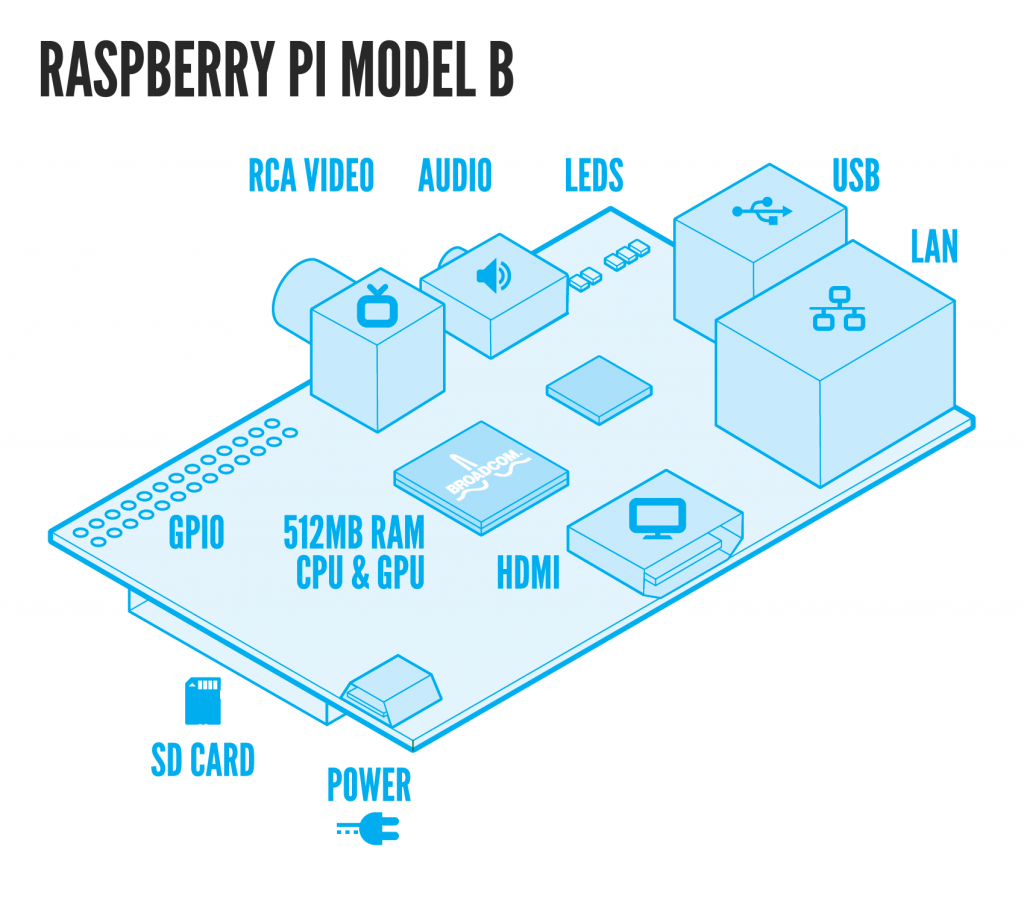
          Allow me to show you the Raspberry Pi. It's a very capable computer for its size, just a bit larger than a credit card. The point of it is to introduce programming to kids, to help them build fundamental skills for a career in software engineering. The problem that the makers of this found was that kids were entering post-secondary education with less and less understanding of computers and software. Previously, kids would learn about computers by playing around with simple platforms like the Commodore 64. So the Raspberry Pi was created, a small computer built specifically for hobbyist programming. At its heart is a ARM11 chip, which gives it roughly the same computing power as a first generation Xbox or Playstation. It has 2 usb ports, one for a keyboard and one for a mouse, a lan socket, a mini usb plug to power it with a 5V power source, an RCA and HDMI port for video, and a SD-card slot that it uses for memory.


     My plan for the Raspberry Pi is to combine it with my robot arm to give it some autonomous abilities. The Pi appears to have the necessary features to communicate with the arm, and if it could be put on a chassis along with the arm, then we it would be able to roam around without the need to be connected to the stationary mac. We could write simple programs that would allow the arm to move around and interact with it's environment, such as picking up an object, or moving through a cluttered space by moving debris out of the way. We have also purchased an infra-red sensor, that can be used as a type of electronic eye that the robot can use to judge distances, as demonstrated by this video:
         For the actual frame of the robot, I was planning to make the simple chassis out of wood or lego, big enough to hold the robot arm, Raspberry Pi, a breadboard to connect the two, and the power systems, which will consist of a battery and circuitry to power the SSC-32 card the Raspberry Pi and the servos at the voltages they require. Initially we can just provide power via a cable to the AC power supply. We will also have to figure out how to make a serial data connection between the Raspberry Pi GPIO pins to the TTL Serial Port on the SSC-32 because they are different voltages. I want the robot to look a bit cleaner than just a chassis covered in wires and circuit boards, so I would like to use thin sheet metal to build an outer shell for it, to give it a more professional look.

Tuesday, 25 December 2012

Receiving Info From the Servo Motors

      Since we successfully sent commands to the controller using the sliders, our next endeavour was to get feedback on the actual position of the servos as they move, using the commands Q & QP. The format of the Q command is "#(servo) Q", and it will send back an ASCII '+' or '.'. The plus means that the servo is currently in motion, while the period means the servo is stopped. The QP command takes the form of "QP(servo)", and will return the pulse width that the servo has been delivered. Using these 2 commands, we can track the servo as it moves.


      We added a text box to the right of slider 4 in our control window and modified our code to have the program show the current pulse width as the slider and the servo both move.
     Our first attempt at coding this was to add a subroutine called “getPulseWidth” that sent the SCC-32 the QP command for servo 4, then read the response and put it in the text box. This operated on roughly the same lines as how we sent sent the move commands to the arm, and then it used the 'read' command to get the signal that was sent back. Because the SSC-32 can sometimes take a few milliseconds to respond, we included a timer that pauses the program for 6 milliseconds to account for that. The program then converts the response to to an integer, and places it in the text box.


      This worked, but we wanted something that would constantly display the pulse width as it changed, not just once when the slider was moved. To do this, we used a loop to call “getPulseWidth” multiple times, constantly updating the text box. It kept getting the value but introduced a few other problems. Since that the loop was constantly running, it became somewhat of a power-hog, and was using processing power when we didn't need it to. This caused large amounts of lag, slowing down our program.

          To fix this,we used a special timer that would trigger every 5th of a second and check the pulse width. This worked perfectly but the timer was still running. We fixed this with the “Q” command, so that the timer when the servo stopped moving. It works by sending the Q command to the arm, reading the response, and if it's a period, meaning that the arm has stopped, it kills the timer.


      We also did one last check of the pulse when the arm had stopped to make sure we got a final position value. This ensured that the position in the text box was correct. We also had to add a couple of lines to kill the timer before we started it just to make sure that the timer was completely reset.


Here's a video showing the final program with the pulse value being updated as the servo moves:


Friday, 21 December 2012

Robot Arm: Writing The Controller

     Since my understanding of programming isn't overly advanced yet, the best approach to building a program for the arm would be to find a program that has a similar function, and modifying it for my needs. After browsing the apple forums, we found a program that someone had developed that could output signals from the serial port. 


       Using a programming environment called XCode, we opened up the program and examined it to figure out how it worked. We then stripped out all of the code we didn't need, leaving us with a solid foundation that we could build upon.


       From there, we built a simple interface consisting of six sliders that controlled each of the six servos. The program had to be written in a language called Objective C, which has some similarities to the Java programming language we used in my Grade 11 Programming course, so it wasn't that hard for me to understand.


       Here is a look at a portion of the code that handles the interface. The very first line basically waits for any of the sliders to be changed, and when one is, it activates the code within the curly brackets. The next line creates the format for the signal that will be sent to the robot(the red text). Normally, the signal that is sent to the robot is "#(servo) P(desired servo position) S(speed)". For instance, if you wanted to send the shoulder to position 1700 at a low speed, you'd type "#1 P1700 S100" and then hit enter. So in our program, you'll notice the same format, except the servo number and servo position have been replaced by a "%d", which is used in Xcode as a substitution, so you can get the program to replace that "%d" with any set of symbols, letters, or numbers. 

        The next few lines get somewhat complicated, but all they really do is take the decimal data received from the slider and convert it to ASCII, so the arm understands it. Finally, the last line outputs the ASCII command through the serial port.

Tuesday, 4 December 2012

Robot Arm: Testing the Computer


     To run the robot arm with a computer, we first needed to make sure the computer could send and receive signals. Since the Macintosh does not have a physical serial port, we used a USB to serial cable that we connected to the physical serial port on an older PC. Then, using terminal emulation programs, which allow you to send and receive signals out the serial port. We set both of the programs to accept ASCII characters, as that is what the robot arm uses, then successfully transmitted a signal to the PC using the Mac, with the same speed and conditions required by the robot arm(115.2kb/s, 8 bits no parity).


Here, you can see that the message that was written on the mac was successfully delivered to the PC using the terminal programs.

     We later used the same method to test if our simple program to control the arm was working. It was better to use the PC to test the program, rather than the arm itself, because we can actually see the signals our program is sending. We used RealTerm on the PC ( download at http://realterm.sourceforge.net ) and CoolTerm on the Mac ( download at http://freeware.the-meiers.org/#CoolTerm ). Both are free and work really well.

Friday, 16 November 2012

Robot Arm: Controlling the servos


Each servo connects to the SSC-32 board using 3 wires. The VC(Red) and Ground(black) wires provide the 5 V DC voltage to power the servo.


The third “Pulse” wire supplies a 5 volt control pulse signal that is repeated 50 times a second (every 20ms). The width of this pulse determines what point the servo rotates to, and can be from 0.9ms to 2.1ms long. For example,an ASCII command from the computer to the SSC-32 control port such as “#2 P1500” would tell the controller to send Servo #2 a signal consisting of 1.5ms pulses which would move the servo to move to it centered position.

The Oscilloscope lets us actually see the pulse by freezing the screen, allowing us to measure it. This is how the Oscilloscope shows the 50ms 5 Volt pulses to the servo.

The black permanent grid squares on the Oscilloscope screen are called “Graticules”, and the numbers at the bottom show the units. In this setting, each graticule is 10 ms wide and 5 Volts high. The two dotted lines are part of the Oscilloscope's measurement tools. The Oscilloscope allows these to be moved to allow vertical or horizontal measurements, and the number at the top op the screen represents the distance between them(20.0ms). The time scale of the scope can be adjusted to look at one pulse and make more accurate measurements.

Below is what the .75ms, 1 ms and 1.5 ms pulses look like for the commands “#1 P750”, “#1 P1000” and “#1 P1500” are sent. 


Using the basic commands the Servos moved very quickly but there is a longer command that allows you to control the speed that they rotate into position. By adding a “S” parameter, the movement speed of the servo can be adjusted. The SSC-32 manual does not explain how this works, but using the Oscilliscope we were able to see how the SSC-32 slowly adjusted the pulse width when the command “#1 P700 S100” was sent (note that the the previous servo position was “#1 P2300”). The “S” value sets the movement speed in us/sec.

Here is a video displaying the changing pulse width.


Friday, 2 November 2012

Robot Arm: The SSC-32 Servo Controller


       The servos on the robot arm are controlled by a controller board called a SSC-32. 

       Here's a diagram from the manual detailing each of its components. 

       As you can see, those pins along the bottom are the connection points for a servo motor. One pin is ground, one pin delivers power, and the remaining pin delivers the pulse that moves the servo. The area of the card that says "Baud" is where the speed that data is passed is selected using 2 jumpers. As you can see in the photo, both jumpers are in, which means that the card will operate at the maximum speed of 115.2 Kilo Bytes per second.

Tuesday, 16 October 2012

Robot Arm Components: Part II: The Control Systems

     Today, I'd like to go over the part of the robot that controls it: the computer. the computer's job is to take in signals from the computer, then interpret those signals and send commands to the various parts of the arm. These signals are in the form of a widely used code: ASCII(American Standard Code for Information Interchange). The purpose of ASCII is simple, in that computers only understand numbers, so ASCII is a way to use numbers to represent actions or characters that aren't numbers. For example, every single button on a keyboard has an ASCII number applied to it.

Ascii Table
An ASCII table
So, when you type in a command on a computer, the computer converts it from ASCII to a binary value, which the computer in the robot then accepts, and sends it in the form of electric pulses to the necessary part of the arm.  

Tuesday, 9 October 2012

The Oscilliscope

     We purchased an oscilloscope at an auction about a month ago, thinking it would be cool to play around with. Basically what it does is measure the voltage over time. The picture on the right shows 2 different voltage over time readings. The bottom one is very much like what my robotic arm would be sending to the servos, each pulse is electricity traveling to the servo, and the width of each pulse is what tells the servo what position it should be in. The dials at the side of the screen allow you to change different variables, so that you can line up the wave with the graticule, and measure it better.
I have to say that I'm rather fond of the way the Oscilloscope looks, it gives a work area a little bit of the 'mad scientist' look. 

Tuesday, 11 September 2012

Robot Arm Components: Part I: The Servos

     Hello, I'd like to take a few posts to explain how my robot arm works before going into detail about using it. First, I'll explain the servo motors.

What Do They Do?
The servo motors handle all functions of the robot involving motion, bending the joints, closing the gripper, and rotating the base, all of these things use the servo motors.


What makes them different from normal motors?
Normal motors are very simple, electricity goes in, the motor turns. Servo motors are much more advanced. First, a signal comes in to the motor. This signal is composed of many quick electric charges traveling at a certain speed this speed tells the motor which position it should be in. The motor then rotates to that position, and continues to keep it's position if it some external force tries to change it.


So what does it do for the robot?
Using these servo motors, the arm can be controlled with a high degree of precision, and gives it the ability to keep it's position whilst under stress, such as when it's lifting an object.

Tuesday, 28 August 2012

Meet The Arm

Meet The Arm.
     For a very long time I've had a robotic arm sitting around that I never really did anything with. So the other day I decided to pull it out and try to get it running. I couldn't get it running with the software it came with(which defeats the purpose of including software with it), so my dad helped me connect to it using his computer, and a terminal program. After a bit of research, we finally got to the point where we could send it individual commands to control it. My plan now is to try and make a program that will have a user friendly interface.